> For the complete documentation index, see [llms.txt](https://seeddao.gitbook.io/seed-tutorial/llms.txt). Markdown versions of documentation pages are available by appending `.md` to page URLs; this page is available as [Markdown](https://seeddao.gitbook.io/seed-tutorial/treasure-and-mission.md).
# Treasure & Mission
### Overview
In SEED, the Mission is created to help you boost your progress by completing tasks there. When a mission is completed, you can claim an equal amount of Stone as the reward. Go to the Treasure section in the app, then use Stone to trade for other SEED App's assets, including SUI, SLOVE, SEED, and SEED Mon Box.
### How to collect Stone
**1️⃣ Go to Mission**
In the main screen, the '**Mission**' button appears in the bottom right.
2️⃣ **Tap on a mission to start**
There are 2 types of Mission, including Daily Task and Game Quest. Tap on a mission to start. Some missions require more than one action, and the progress bar will help you to keep track of these missions.
3️⃣ **Complete and claim Stone**
Once the bar shows as completed, click on the '**Recheck**' button to check and claim your Stone.
Click on the '**Redeem**' button to swap your Stone with other assets in SEED, and invite your friend to join using the '**Invite friends**' button.
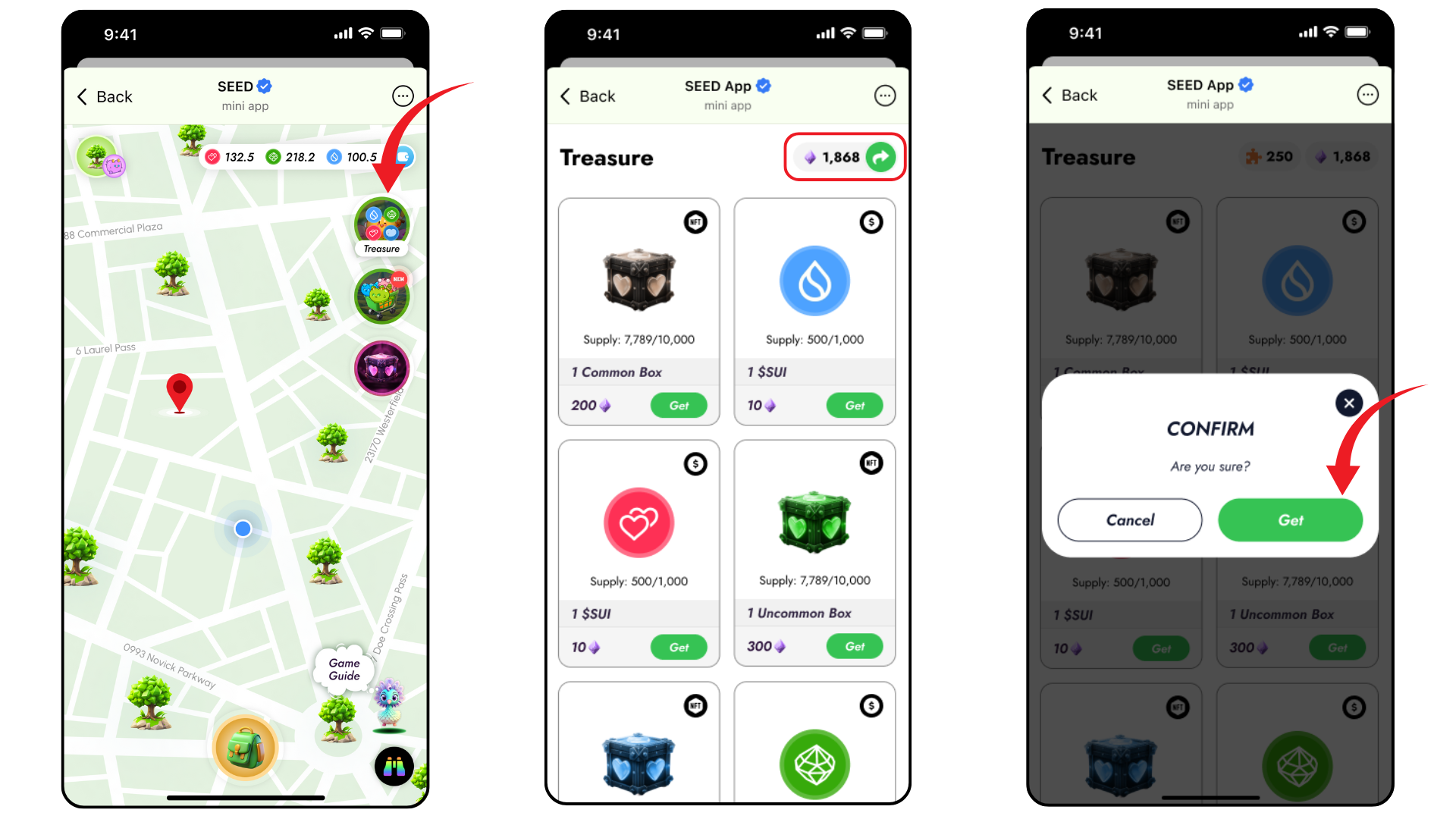
### How to swap Stone
1️⃣ **Go to Treasure**
In the main screen, the '**Treasure**' button appears in the upper right.
**2️⃣ Choose an asset**
Scroll down to choose the asset that you want to swap your Stone with. The number of Stone you currently have appears on the right side of the screen.
**3️⃣ Confirm and swap Stone**
Once done choosing, tap on the asset on click the '**Get**' button to complete.
.png?alt=media&token=2f7bc99b-0b49-47a1-9c03-62afcd405ada)
.png?alt=media&token=dbf4baab-4a23-4b6a-9c3f-09f96e360e4e)